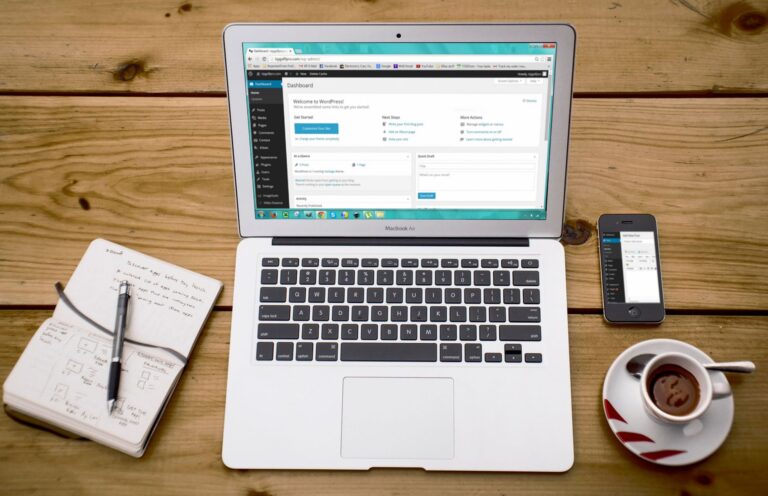

When your WordPress site loads but wp-admin does not, an application error breaks the dashboard while a network error blocks the route to it. wp-admin, the password-protected dashboard for managing posts, users, and settings, fails differently in each case.
Application faults live inside WordPress itself. Network faults live between your browser and the server. Knowing the difference saves time and prevents wrong fixes.
Official resources:
- Enable WordPress debug logging to identify application errors — Follow the official guide to log PHP errors to debug.log and distinguish application faults from network blocks.
- Troubleshoot WordPress login issues with cookies and passwords — Use the official checklist to verify cookies, passwords, and firewall settings when wp-admin login fails.
Table of Contents
- What breaks inside WordPress
- What blocks the path to wp-admin
- How do you tell them apart?
- What should you fix first?
What breaks inside WordPress
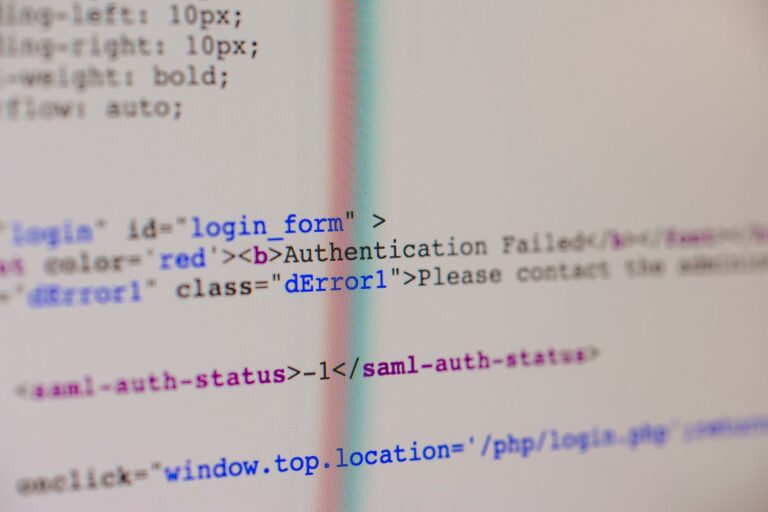
A faulty plugin, theme, or code snippet often breaks login while public pages still render. You may see a blank screen, a redirect loop, or an error on wp-login.php. The front end keeps working because it does not run the same dashboard code.
Wrong file permissions, a damaged .htaccess rule, or a lost password cookie can lock you out. A security plugin may also limit login attempts after an update. These faults follow your account and dashboard files, not your connection.
What blocks the path to wp-admin
Network controls often protect wp-admin more strictly than public pages. A firewall, CDN rule, or host setting may block wp-admin or wp-login.php by country, IP, or request rate.
Visitors still see cached pages while you cannot reach the login screen. A wrong redirect from HTTP to HTTPS, an expired certificate, or slow DNS can stop only the dashboard. Browsers show timeouts, certificate warnings, or too many redirects instead of WordPress errors.
How do you tell them apart?
Application faults usually show WordPress text, a white screen on wp-login.php, or a loop between login pages. Network faults usually show browser or server codes like 403, 404, 500, 502, or a certificate warning.
Try these quick checks: If the error changes with networks or clears when protection pauses, treat it as network-related. If every network shows the same WordPress error and the log names a plugin, treat it as application-related.
- open wp-login.php in a private window and note the exact message
- load wp-admin from phone data instead of office Wi-Fi
- check the server error log for PHP faults around the login time
- pause CDN proxy or firewall briefly for one test, then restore it
What should you fix first?
For suspected application faults, remove recent changes first. Deactivate new plugins, switch to a default theme, and clear object cache. Test wp-login.php after each step to find the trigger.
For suspected network faults, check access rules before touching code. Review firewall blocks, CDN page rules, and HTTPS redirects for wp-admin. Ask your host whether wp-admin is rate-limited or blocked for your IP, then allow your address and retry.