
A WordPress login blocked after several attempts often means a firewall lockout is stopping your network from reaching the login page. Confirm it by checking for a blocked message on the login screen and loading the same page from phone data with Wi-Fi off. A firewall is a security filter that screens traffic before WordPress loads.
It blocks an IP address, the number that identifies your internet connection, after repeated failures to stop password guessing. This check matters because the fix depends on the cause. A true lockout needs an unblock or a waiting period, while a wrong password or broken plugin needs a different repair.
Table of Contents
- What a Lockout Message Looks Like
- How to Rule Out Password and Site Errors
- Where to Confirm the Block in Logs
- How to Regain Access Safely
What a Lockout Message Looks Like
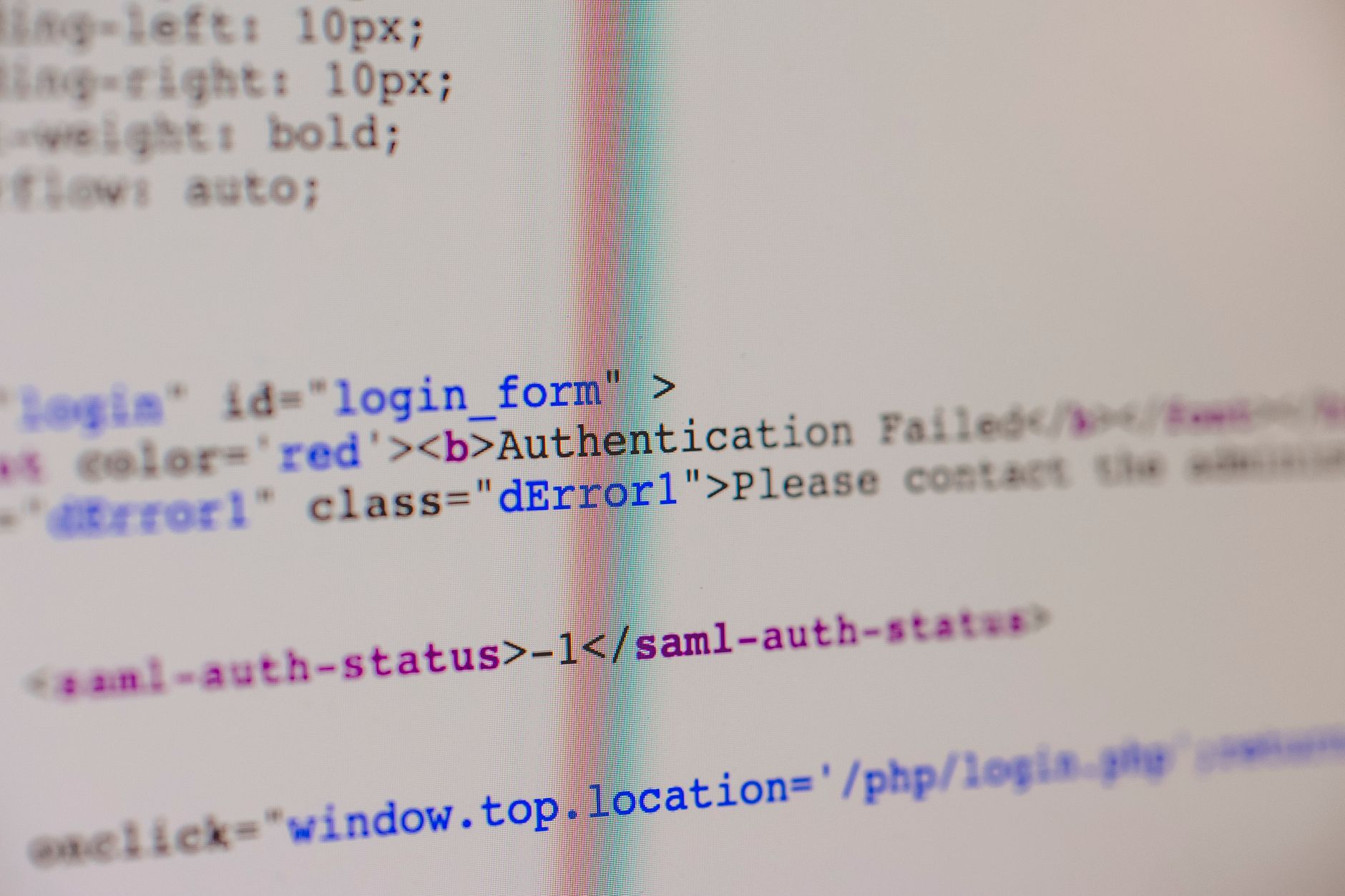
Most WordPress firewalls show a plain block page instead of the normal login form. It may say access denied, forbidden, or login disabled for a set time. The wording varies by tool, but many versions name the blocked network address.
A firewall block usually affects only the network that made the failed attempts. Other visitors still see the site, and you can often load the homepage while the login page stays blocked. Save the exact message text and the time you saw it. That detail helps you match the event in logs later.
- You see the same error in a private window on the same Wi-Fi
- The login page works from phone data with Wi-Fi turned off
- The homepage loads, but the login page returns an error
How to Rule Out Password and Site Errors
Start by separating a block from a simple login failure. A wrong password usually returns an incorrect username or password notice and still shows the login form. A lockout hides the form, adds a timer, or refuses to load the page. Check whether the whole site is down or only login is affected.
Open the homepage in the same browser, then open a single post. If public pages load normally while login fails from one network, a network-specific block is more likely. Clear the browser cache or try a private window before further tests. This step removes a stored redirect or old error page that can look like a continuing block.
Where to Confirm the Block in Logs
If you can reach the WordPress dashboard from another network, open the security plugin and review recent activity. Look for failed login attempts from your address followed by a lockout or block entry. The time should match when your logins started failing.
If the site uses a host-level firewall, check the hosting control panel for a security or firewall section. Many hosts list blocked addresses, blocked login attempts, and the rule that triggered the action. One matching log entry is stronger evidence than symptoms alone. Without a log match, keep other login failures on the list.
- Note your public address from the working network before changing anything
- Match the blocked address, time, and login page in the log
- Look for repeated failures before the block, not one isolated error
How to Regain Access Safely
Wait out a short temporary block when the message names a clear release time. For longer blocks, log in from an unaffected network and remove only your own address from the blocked list. Ask the site host for help when you cannot reach any dashboard.
Do not turn off the firewall or login limits to get back in faster. Those controls stop automated password guessing, and disabling them exposes every account. Use a password manager, enable two-factor authentication, a second code in addition to the password, and keep administrator accounts few. Ask one trusted administrator to remove only the single blocked address entry, then log in and review the failed attempts before changing anything else.