
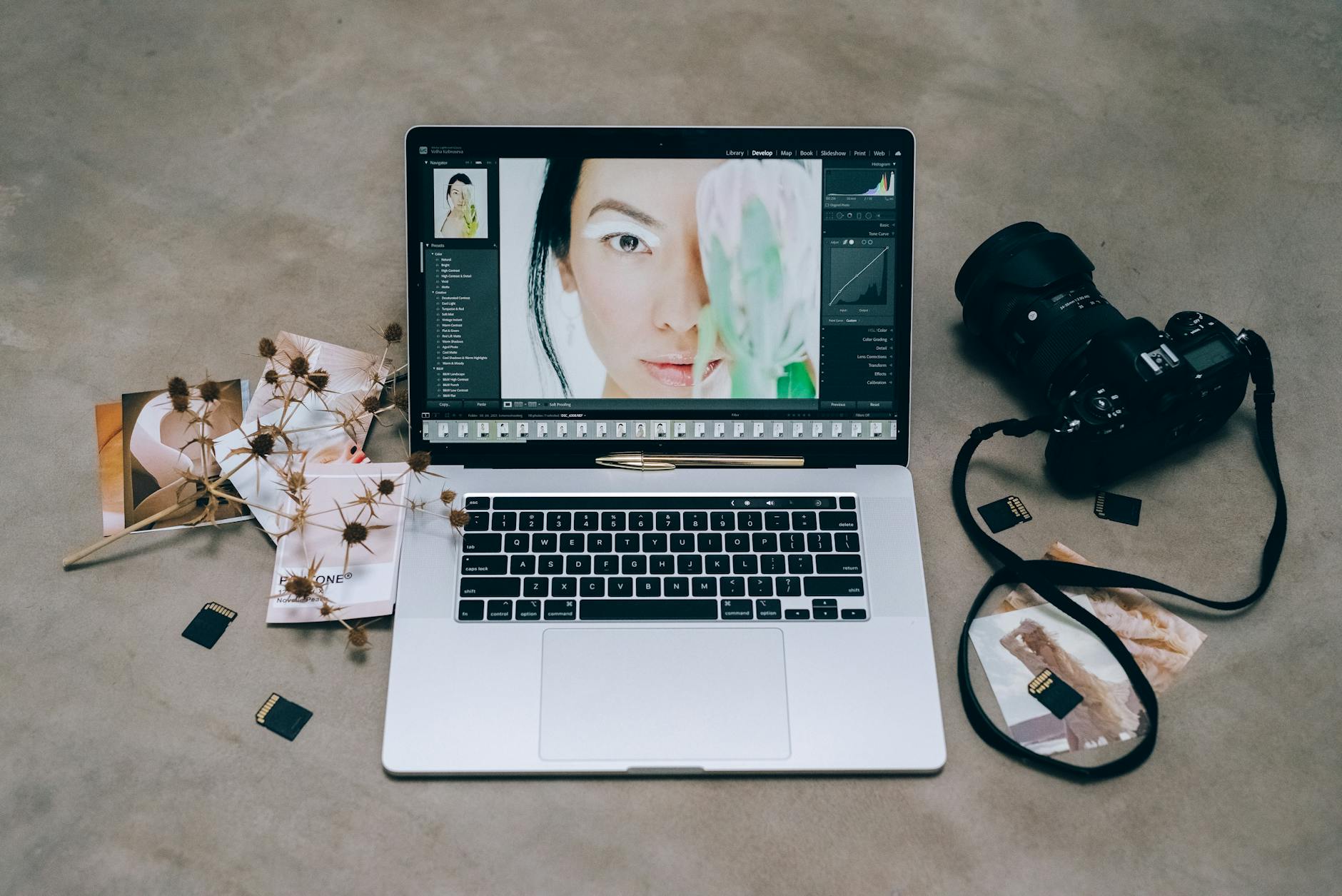

Editing photos without ruining them comes down to one fundamental principle: work non-destructively by using layers, adjustment layers, and smart objects instead of directly modifying your original image data. When you edit destructively—flattening layers, merging groups, or applying filters directly to your base image—you permanently alter pixels and lose the ability to undo or adjust your changes later. The solution is to keep your original photo intact as a locked base layer, apply all edits on separate layers above it, and use Photoshop’s adjustment tools like Curves, Levels, and Hue/Saturation as adjustment layers rather than permanent modifications.
For example, if you’re adjusting the brightness of a portrait, instead of using Image > Adjustments > Brightness/Contrast directly on the photo, you’d create a new Curves adjustment layer, which lets you tweak the brightness endlessly without losing detail or quality. The key to non-destructive editing is understanding that Photoshop gives you multiple pathways to the same result—some preserve your options, others lock you in. Most photographers and designers who say they’ve “ruined” an image have actually just applied changes in the wrong order or on the wrong layer type. Once you shift your workflow to prioritize layer structure and reversibility, you’ll find that complex edits become safer, faster, and easier to refine based on client feedback or second thoughts.
Table of Contents
- What Does “Non-Destructive” Editing Actually Mean in Photoshop?
- Master Adjustment Layers to Avoid Permanent Changes
- Smart Objects and Filter Protection
- Use Layer Masks to Protect Specific Areas
- Common Destructive Mistakes and How to Prevent Them
- Sharpening and Noise Reduction Without Overprocessing
- Building a Non-Destructive Workflow for Web and Marketing Teams
- Conclusion
- Frequently Asked Questions
What Does “Non-Destructive” Editing Actually Mean in Photoshop?
Non-destructive editing means making changes that you can undo, modify, or delete at any point without permanently altering your source image. In Photoshop, this happens through layers—each adjustment, filter, or edit lives on its own layer that sits above your original photo. If you decide three steps in that a change isn’t working, you simply delete that layer or turn it off. Compare this to destructive editing, where you apply a Brightness/Contrast adjustment directly to your image, flatten your layers, and save over your original file. Hours later, if your client asks for a warmer tone, you’d have to start from a backup or redo the entire edit from scratch.
With non-destructive techniques, you’d just click on the adjustment layer, tweak the temperature, and save a new version in seconds. The reason this matters for web designers and digital marketers is that non-destructive workflows let you reuse the same source image for multiple purposes. You might create one version with higher contrast for social media, another with warmer tones for email marketing, and a third with more saturation for a website hero image—all from the same original file, all without ever degrading the underlying photo. This also means you can hand off files to team members or clients with all the editing decisions visible and changeable. If someone wants to adjust your saturation level, they’re not asking you to start over; they’re asking you to move a slider on an adjustment layer.
Master Adjustment Layers to Avoid Permanent Changes
Adjustment layers are the single most important feature for non-destructive editing, yet many Photoshop users still reach for the Image > Adjustments menu instead. When you use Image > Adjustments > Levels, you’re modifying the actual pixel data of your image. When you create an Adjustment Layer > Levels, you’re creating a separate instruction set that tells Photoshop how to display the pixels beneath it—the original data never changes. This distinction is enormous because adjustment layers can be edited, deleted, or have their opacity reduced at any time, while destructive adjustments can only be undone if you haven’t closed the file. The most commonly used adjustment layers for photo editing are Curves (for precise tone control), Levels (for quick contrast fixes), Hue/Saturation (for color shifts), and Color Balance (for warming or cooling an image). There’s also Exposure, for photos that are too dark or bright. Each of these can be applied as an adjustment layer by going to Layer > New Adjustment Layer and choosing the type you need.
A practical example: you’re editing a landscape photo that’s slightly underexposed. Instead of using Image > Adjustments > Curves to brighten it permanently, you create a Curves adjustment layer, push the curve upward to brighten the midtones, and then use the adjustment layer’s mask to limit the brightening to just the sky, leaving the foreground untouched. If the client says the sky now looks unnatural, you tweak the curve again. If they hate it entirely, you delete the layer and start over without losing anything. One limitation of adjustment layers worth knowing: they increase file size, especially if you stack many of them. A document with dozens of adjustment layers will be larger than a flattened image, and it will take longer to export. For web use where file size matters, you’ll eventually need to flatten or export, but that should happen only after you’ve approved the final result. Never flatten during the editing process—always save a working version with all layers intact before you create a flattened version for export.
Smart Objects and Filter Protection
Smart Objects are another layer of protection against destructive editing, especially valuable when you’re applying filters or effects. When you convert a layer to a Smart Object, any filters you apply to it become editable without harming the original layer data. This is critical if you’re using Photoshop’s built-in filters or third-party plugins for effects like blur, sharpening, or artistic filters. If you apply a Gaussian Blur directly to a photo layer, that blur is permanent and can’t be adjusted without undoing it. If you apply the same blur to a Smart Object, you can double-click the blur effect later, adjust the radius, and see the results update in real time. To create a Smart Object, right-click any layer and select “Convert to Smart Object,” or go to Layer > Smart Objects > Convert to Smart Object. Any filters you apply afterward will show up in the Layers panel as editable effects that you can tweak or delete.
For example, imagine you’re sharpening a photo for a website using the Unsharp Mask filter. With a Smart Object, you can adjust the sharpening amount weeks later if the photo looks over-processed when it’s actually on the website. Without a Smart Object, you’d have to undo, reapply the filter with different settings, and re-do all your other edits. Smart Objects also protect you when resizing or transforming layers—if you scale a Smart Object down and then later want to scale it back up, the original data is preserved so you don’t lose quality. The tradeoff is that Smart Objects can’t be edited pixel-by-pixel directly. If you want to paint or clone-stamp onto a Smart Object, you have to either rasterize it (which defeats the purpose) or paint on a separate layer above it. For most photo editing workflows, though, this isn’t a problem because your actual retouching usually happens on a separate layer anyway.
Use Layer Masks to Protect Specific Areas
Layer masks are how you control where edits appear on your image without altering the pixels underneath. Instead of erasing parts of an adjustment or effect, you paint on the mask to hide the edit in certain areas and reveal it in others. This is especially useful when an adjustment helps one part of your image but hurts another. For instance, you might brighten the overall exposure with an adjustment layer, but the brightening makes the sky look blown out. Rather than starting over, you paint black on the adjustment layer’s mask over the sky area, which hides the brightening in just that region while keeping it everywhere else. To add a mask to any layer, select the layer and click the mask icon at the bottom of the Layers panel, or go to Layer > Mask > Add Layer Mask. A white rectangle appears next to your layer thumbnail—this is the mask.
Paint black on the mask to hide the effect, paint white to reveal it, and paint gray for partial transparency. The original layer data is completely unchanged; you’re just controlling visibility. If you decide the mask is too aggressive and you want the brightening to show through a little more in the sky, you adjust the mask—no need to re-do the adjustment itself. This is worlds safer than using the eraser tool, which permanently removes pixels. Masks become even more powerful when combined with selections. You can use the Quick Selection tool, the Lasso, or Refine Edge to select a specific area of your image, create a mask from that selection, and apply an adjustment only to that region. This technique is essential for selective edits like brightening eyes without affecting the rest of a portrait, or increasing saturation in just the flowers in a landscape without over-saturating the grass.
Common Destructive Mistakes and How to Prevent Them
The most common way people accidentally ruin photos in Photoshop is by flattening layers too early. Many users flatten after a few edits to “clean up” their file, not realizing that flattening merges all layers into one and makes all adjustments permanent. A flattened image is back to being destructively editable—you can’t separate your Curves adjustment from your Hue/Saturation adjustment anymore. The solution is to never flatten during editing. Only flatten when you’re creating a final export file, and always keep a working version (.psd file) with all layers intact. Save your .psd, then export a flattened copy for whatever platform you need it for. Another destructive mistake is using filters directly instead of on Smart Objects. If you apply Filter > Blur > Gaussian Blur to a regular layer, you’re modifying pixels permanently.
The blur looks good at first, but if you later decide you want more blur, or if you realize the blur makes small details illegible on the website, you’re out of luck unless you undo multiple steps. Using a Smart Object prevents this entirely. Similarly, many people clone-stamp or use the healing brush directly on their photo layer, and then realize the retouching looks unnatural or too heavy-handed. The fix is to create a new empty layer above your photo, set the clone-stamp tool to “Sample from all layers,” and do your cloning and healing on that separate layer. This way, if the retouching looks overdone, you can reduce the layer’s opacity or erase parts of it without affecting the original photo. A final warning: always work on a copy of your original image or in a file that’s separate from your source. Open your photo, immediately go to Image > Duplicate to create a working copy, or simply use File > Save As to save a working version before you start editing. This ensures that if you accidentally flatten or make some other irreversible mistake, your original is still safe. It’s a one-second habit that has saved countless projects.
Sharpening and Noise Reduction Without Overprocessing
Sharpening is one of the easiest adjustments to overdo because the results feel good in isolation but look harsh when your photo is actually used. If you sharpen a portrait too much in Photoshop, the skin looks unnatural and grainy on a website. To sharpen non-destructively, apply the sharpening filter to a Smart Object (or use an adjustment technique like High Pass Sharpening on a separate layer), so you can reduce the amount later if needed. Many professionals use the Unsharp Mask filter with conservative settings—Radius 1.0, Amount 50-80—rather than trying to fix an under-sharpened photo by cranking the sharpening to 200 or 300.
Noise reduction has the opposite problem: reduce noise too aggressively and you lose fine details and texture. Photoshop’s Reduce Noise filter can make a grainy photo look plasticky if you’re not careful. The safest approach is to use a high-pass filter on a separate layer, which sharpens without intensifying noise, or to apply Reduce Noise with moderate settings and then reduce the layer’s opacity if it feels too strong. Always check your final result at 100 percent zoom and on the actual device it will be viewed on—what looks fine at 50 percent zoom in Photoshop might look over-processed when viewed full-size on a website.
Building a Non-Destructive Workflow for Web and Marketing Teams
If you’re creating images for websites, social media, or digital marketing campaigns, a non-destructive workflow becomes a team asset rather than just a personal preference. When you keep your .psd files organized with clearly named layers—”Original Photo,” “Brightness Adjustment,” “Color Correction,” “Sharpening”—anyone on your team can open the file and understand what was done. If a client asks for a version with slightly less saturation or a warmer tone, a designer can adjust those layers in seconds rather than asking you to start over.
This also means you can version-control your edits; if a client changes their mind about a direction, you can toggle layers on and off to show them both options side-by-side. Looking forward, AI-powered tools like Photoshop’s generative fill and object selection are making non-destructive editing even more accessible, but they work best within a careful layer structure. As these tools become more integrated into professional workflows, the fundamentals remain the same: protect your source image, use adjustment layers for color and tone, use Smart Objects for filters, and always maintain a working file with all edits visible and changeable. The time you invest in setting up a clean, organized, non-destructive workflow at the start of a project will save you hours of rework and frustration as feedback comes in.
Conclusion
Editing photos without ruining them is fundamentally about discipline and structure, not technical complexity. The core tools are simple—adjustment layers, Smart Objects, layer masks, and organized layer naming—but using them consistently transforms Photoshop from a tool that locks you into your decisions to a tool that keeps your options open forever. Whether you’re a web designer retouching images for a website, a marketer creating social media graphics, or a photographer delivering client work, the principle is the same: make your edits on separate layers, never flatten until the end, and always keep a working version with all layers intact.
Start your next project by creating a folder structure in your Photoshop file (Image > Duplicate, then save as .psd), locking your original photo layer, and placing all adjustments above it on separate layers with clear names. After you’ve worked this way once or twice, it becomes automatic, and you’ll wonder how you ever edited without it. The extra minute spent organizing layers at the start of a project saves you hours of frustration when changes are requested or when you want to reuse the image for a different purpose.
Frequently Asked Questions
Can I undo edits after I’ve saved and closed a Photoshop file?
No, not unless you’ve saved the file as a .psd with all layers intact. The Edit > Undo function only works while the file is open in the current session. Once you close the file, you can’t undo past edits. This is why it’s critical to save a working .psd version before you flatten or export. If you need to revise an image weeks later, the .psd file is your safety net.
What’s the difference between a layer mask and simply erasing parts of a layer?
A layer mask hides parts of a layer without deleting them. If you erase pixels directly, they’re gone permanently and can’t be recovered unless you undo. With a mask, you can always paint white back on the mask to reveal the hidden areas. Masks are non-destructive; erasing is permanent.
Do adjustment layers slow down Photoshop or make my file too large?
Adjustment layers do increase file size, but the slowdown is negligible for most projects. A .psd file with 10 adjustment layers is still much smaller than the same image in formats like .tiff with embedded layers. The file size only becomes a concern if you have dozens of layers, and even then, the trade-off—being able to edit everything—is worth it.
Is it okay to flatten my image if I’ve exported a copy first?
Yes, as long as you still have a working .psd file with all layers saved separately. Many professionals export a flattened .jpg or .png for use on a website, email, or print, while keeping the .psd with full layers as their working file. Never flatten your only copy of the image.
What’s the best way to organize layers so other team members can understand my edits?
Use clear, descriptive layer names like “Brightness Adjustment” instead of “Layer 1,” and create layer groups (Folder icon in the Layers panel) to organize related edits. Group all your color corrections together, all your retouching on another folder, and so on. Add a note in the top group or in the file’s metadata about the image’s purpose and any important edits.
Can I apply multiple Smart Object filters and edit them all independently later?
Yes. Each filter you apply to a Smart Object appears as a separate editable effect in the Layers panel. You can click on any filter effect, adjust its settings, or delete it without affecting the others. This is one of the most powerful aspects of Smart Objects for complex edits.


