


JIRA is created as a project first, then populated with issues that flow through custom workflows—giving your team a structured way to track, organize, and complete work. To get started, you navigate to Projects, select Create Project, choose a template like Scrum or Kanban, enter your project name and key, and click Create. This setup gives you a container that holds all work items related to a specific goal, whether you’re managing software development, marketing campaigns, or any project-based work. The real power of JIRA comes from how these three components—projects, issues, and workflows—work together. A project provides the foundation. Issues are the individual pieces of work (epics, stories, tasks, or bugs).
And workflows define the journey each piece of work takes from creation to completion. Understanding how to set up each one correctly transforms JIRA from a confusing tool into a genuine productivity multiplier for teams of any size. A concrete example: A web development team launches a new JIRA project using the Scrum template. They create an Epic for “User Authentication System,” break it into Stories like “Implement login form” and “Add password reset,” add Tasks for code review and testing, and track any Bugs that surface. As developers work, each item moves through statuses—To Do, In Progress, Review, Done—based on the workflow the team configured. This visibility and structure prevents work from falling through cracks.
Table of Contents
- What Are JIRA Projects and How Do You Create One?
- Understanding JIRA Issue Types and Their Purpose
- Building Custom Workflows That Match Your Process
- Step-by-Step Workflow for Managing Your Backlog
- Common Workflow Mistakes and How to Avoid Them
- Advanced Configuration: Workflow Conditions, Validators, and Screens
- Scaling JIRA: Multiple Projects and Enterprise Considerations
- Conclusion
What Are JIRA Projects and How Do You Create One?
A jira project is fundamentally a container—a defined space where all work related to a specific initiative lives together. Projects isolate work, define who has access, and determine which templates, workflows, and issue types are available. Think of a project like a folder in your file system, except it’s designed specifically for collaborative team management. You can have separate projects for different client work, product lines, or internal initiatives, each with its own settings and team members. Creating a project follows a straightforward path: click Projects in your JIRA sidebar, select Create Project, and you’ll be prompted to choose a template. JIRA offers Scrum and Kanban templates as standard options. Scrum is ideal if your team works in sprints with planned iterations; Kanban works better for continuous flow where work is added as it arrives.
After selecting your template, you enter a project name and a project key (a short abbreviation like “PROJ” or “WEB” used in issue identifiers). Once you click Create, JIRA sets up the project with default workflows, issue types, and team permissions. The template you select at creation time matters because it determines your default workflow structure. A Scrum project automatically includes sprint planning capabilities, velocity tracking, and sprint-focused workflows. A Kanban project removes sprints entirely and focuses on continuous delivery with simpler status transitions. You can modify these defaults later, but choosing correctly upfront reduces configuration work. Many teams make the mistake of picking Scrum when their work is actually continuous, then spend weeks trying to work around sprint mechanics that don’t fit their process.

Understanding JIRA Issue Types and Their Purpose
Issues are the individual units of work in JIRA, and they come in different types depending on what you’re tracking. An Epic is the largest unit—a body of work significant enough to require multiple stories and tasks to complete. For instance, “Implement Payment Processing” might be an Epic that contains stories for credit card integration, payment confirmation emails, and refund handling. Stories are user-centric requirements, typically written as “As a [user], I want [feature] so that [benefit].” Tasks are generic pieces of work that don’t fit the story framework, like “Update documentation” or “Upgrade server dependencies.” Bugs represent defects or problems that need fixing, and they often include reproduction steps, severity levels, and screenshots. Each issue type carries unique properties and can follow different workflows.
This separation matters because a Bug might move through statuses like New → Acknowledged → In Development → Testing → Resolved, while a Story might follow In Backlog → Selected for Sprint → In Progress → Review → Done. By using distinct issue types, your team creates a shared language about what kind of work something is, which reduces confusion and helps prioritization. A developer seeing “Story” knows it has acceptance criteria tied to user value. Seeing “Task” means it’s necessary work that may not directly deliver feature value. One limitation to understand: if you try to cram everything into a single issue type, you lose the contextual clarity that different types provide. A team that treats Bug, Task, and Story the same way will struggle to distinguish between urgent problems, necessary maintenance, and feature development—making sprint planning and capacity forecasting nearly impossible.
Building Custom Workflows That Match Your Process
A workflow is the path that work items take from creation to completion, composed of statuses and transitions. A status is a point in that journey—like To Do, In Progress, or Done. A transition is the allowed movement between statuses, often with conditions or actions attached. For example, an issue might have statuses of To Do, In Progress, In Review, and Done, with transitions that require code to be committed before moving from In Progress to In Review. Creating a workflow as a draft means you build it without affecting active projects, then add it to a project’s workflow scheme once it’s ready. When you add a workflow, you specify which issue types use it—you might have one workflow for Stories, a different one for Bugs, and another for Tasks.
This flexibility lets you enforce different processes for different work types. A Bug workflow might allow a developer to move directly from In Progress to Done, while a Story might require a mandatory Review status where a team lead approves acceptance criteria before closure. Once you’ve configured everything, you publish the workflow to make it live. The real value surfaces when your workflow matches your actual process. A team that requires code review before merging should have a Review status in their workflow with a transition that blocks Direct closure of issues without that step. Conversely, a team that skips formal review but relies on pair programming can use a simpler flow. The mistake many teams make is copying workflows from templates without customizing them to their own needs, then fighting friction as their process tries to work around a misaligned workflow.
Step-by-Step Workflow for Managing Your Backlog
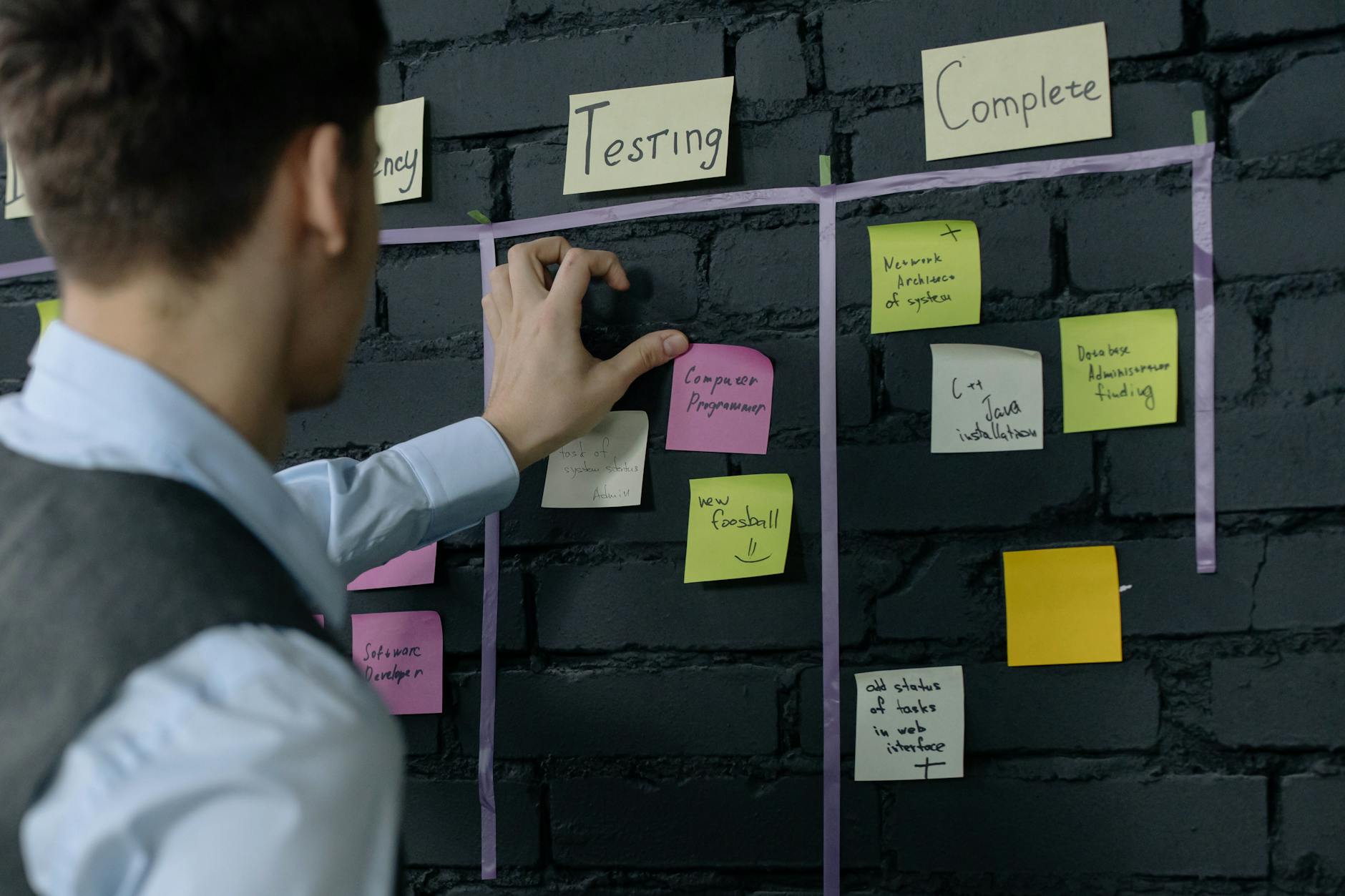
After setting up projects and issue types, the practical workflow involves creating issues, assigning them to team members, and moving them through statuses as work progresses. In a typical sprint-based team, the cycle starts with creating stories in the backlog, which might happen during requirements gathering or product planning. Each story includes a title, description, acceptance criteria (the conditions that define “done”), and often a rough estimate of effort. During sprint planning, the team selects stories from the backlog and commits to completing them in the coming sprint. As work happens, developers move issues through the workflow states. An issue starts in To Do, moves to In Progress when someone claims it, transitions to In Review when a pull request is opened, and finally reaches Done when code is merged and acceptance criteria are verified. This visibility lets managers see what’s stuck, what’s complete, and what’s at risk.
In a Kanban flow (without sprints), the cycle is similar but continuous—new work is added to the backlog and flows through the same stages without waiting for a sprint to begin. The tradeoff to understand is between workflow simplicity and process enforcement. A team with many statuses and required approvals creates clear accountability but adds friction and may slow delivery. A team with few statuses moves fast but risks missing quality checks. The right balance depends on your team size, product criticality, and risk tolerance. A startup building an internal tool might use three statuses (To Do, In Progress, Done). A financial services team managing compliance-critical software might use seven or eight with multiple approval steps.
Common Workflow Mistakes and How to Avoid Them
One of the most frequent mistakes is creating too many statuses or transitions, turning the workflow into a bureaucratic gauntlet that slows teams down. A workflow with statuses like To Do, Ready for Review, Under Review, QA Verification, Staging Deployment, Production Deployment, and Done might seem comprehensive, but it often results in issues stalling as they wait for each step. Unless each status represents a genuinely different phase that the team actively monitors and manages, you’re adding overhead without proportional value. Another common issue is misaligning your workflow with your actual process. Teams often inherit a workflow from a template or another project, then discover it doesn’t match how they work. For example, a team that does continuous integration and deploys multiple times daily might find a workflow with a “Staging Deployment” status frustrating because they deploy directly to production.
Rather than fight the workflow, they should create a simpler one that reflects their true process. This misalignment is a silent killer of team morale because every issue feels like it’s fighting the system. A warning: if you change your workflow after a project is active, existing issues may become stuck in statuses that no longer exist in the new workflow. JIRA allows you to map old statuses to new ones during transition, but this requires planning and careful execution. Avoid making significant workflow changes mid-sprint or mid-project when possible. If you must change, communicate clearly to the team and test the mapping thoroughly before applying it to production.
Advanced Configuration: Workflow Conditions, Validators, and Screens
Beyond basic status transitions, JIRA allows you to add conditions, validators, and custom screens to workflows. A condition determines whether a transition is available (for example, “only the issue’s assignee can move this to Done”). A validator checks that required fields are filled before a transition is allowed (“you can’t mark a bug as Done without selecting a Fix Version”). A screen is the form a user sees when making a transition, and you can customize which fields appear for each workflow action. These advanced features let you enforce your team’s standards without relying on discipline or memory.
For instance, you might require that every Story moved to Done must include a link to the merged pull request and have acceptance criteria verified. Or that every Bug moved to Resolved must specify the version number where the fix will ship. Without these enforcements, team members might forget these steps, causing problems downstream. The practical example is a mobile app team that requires screenshots or video proof before marking UI-related stories as Done. They can create a workflow screen for the Done transition that includes a required “Proof of Completion” field. This ensures consistency and reduces back-and-forth during code review—the requirement is built into the process, not left to chance.
Scaling JIRA: Multiple Projects and Enterprise Considerations
As teams grow, managing multiple JIRA projects becomes inevitable. A large organization might have separate projects for backend services, frontend applications, mobile apps, infrastructure, and QA. The challenge shifts from “how do I set up a project” to “how do I keep work synchronized across projects and prevent duplicated effort?” JIRA addresses this with features like epics that span projects, linked issues (which let you connect issues across project boundaries), and release management tools that coordinate work across multiple teams.
The future of JIRA project management is increasingly toward platform thinking—where individual projects are part of a larger product ecosystem that requires visibility and synchronization. Teams are moving toward shared roadmaps, cross-project release planning, and automated dependency tracking. If you’re setting up a new project now, it’s worth considering how it will fit into a larger portfolio of projects, even if you’re currently a single-team organization. This prevents you from having to rebuild workflows and structure later as you scale.
Conclusion
Creating a JIRA project, populating it with issues, and configuring custom workflows is straightforward in concept but requires intentional thinking to do well. The setup process itself takes minutes—the real work is designing issue types and workflows that reflect how your team actually works, not how you think you should work. Start with a template, customize it minimally, and use a real sprint or project cycle to test whether the structure serves your team or frustrates them. After the first iteration, you’ll have clarity about what to adjust.
The payoff for getting this right is significant. Teams with well-configured projects, issue types, and workflows spend less time managing the system and more time doing actual work. They have visibility into what’s happening, clear handoffs between disciplines, and a shared understanding of priorities and progress. If your current JIRA setup feels clunky or your team treats it as a compliance checkbox rather than a useful tool, the problem usually isn’t JIRA itself—it’s a mismatch between your configuration and your process. Review your project setup with this framework, and you’ll likely find quick wins that improve team productivity.


