
WordPress Block Editor custom blocks are purpose-built content units that let editors add structured layouts and features without code. A development checklist moves a block from idea to reliable release by covering planning, code structure, editing experience, testing, and maintenance.
The Block Editor is the default WordPress content interface where pages are assembled from blocks. Custom blocks suit repeated patterns such as testimonials, pricing tables, location cards, or job listings. Clear upfront decisions reduce rework and keep content portable when themes or plugins change.
Table of Contents
- What Should You Define Before Building?
- How Should You Structure Block Code?
- How Do You Make Blocks Easy to Edit?
- What Should You Test Before Release?
- How Do You Maintain Blocks Over Time?
What Should You Define Before Building?
Start with the editorial job the block must do. Name the content fields, required versus optional entries, and acceptable formats for text, images, and links. A tight definition prevents a generic block that tries to serve every layout. Map how editors will reuse the content.
Decide whether the block needs multiple styles, preset patterns, or alignment and color controls. Keep options limited to choices that preserve readability and brand consistency. Agree on fallback behavior for missing data. Define what shows when an image, quote, or call to action is absent. This avoids empty wrappers, collapsed layouts, or confusing gaps on the published page.
How Should You Structure Block Code?
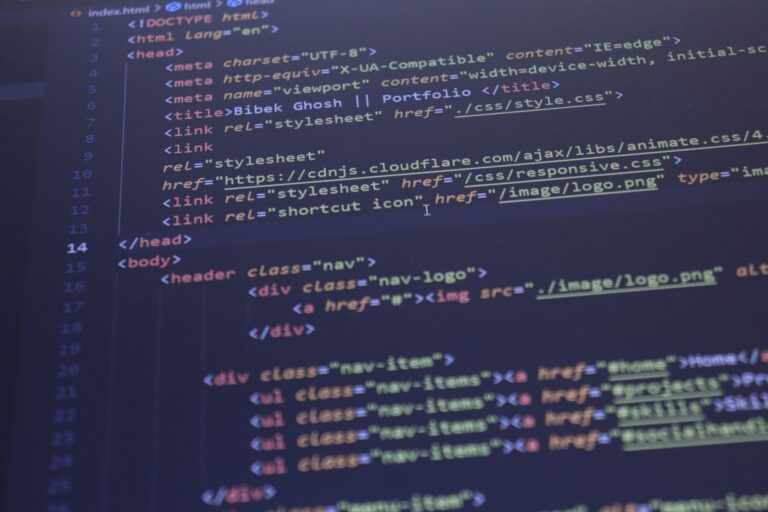
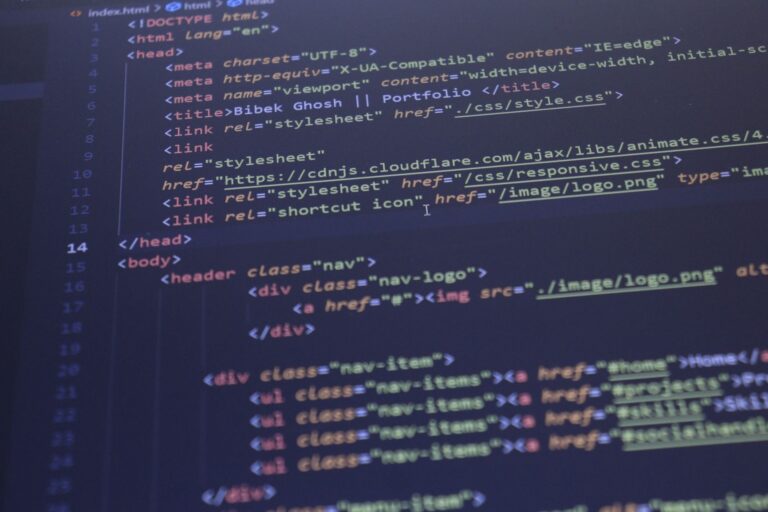
Separate content, presentation, and behavior. Store structured attributes for text and settings, render markup from those attributes, and keep interactive scripts apart from display styles. This separation makes debugging and redesigns simpler.
Use consistent naming, versioning, and file organization for every block. Support both the editor canvas and the saved page output. Register server rendering only when content must stay dynamic, such as listings or counts. Prefer static saves for fixed content because they load faster and break less often.
- Use one folder per block for markup, styles, scripts, and schema.
- Use clear attribute names that describe content, not appearance.
- Namespace block names and style handles to avoid conflicts.
- Record block version and markup changes in the project notes.
How Do You Make Blocks Easy to Edit?
Design the editing controls around common tasks. Place labels, help text, and placeholders where an editor can predict the result. A block with a clear preview, toolbar actions, and sidebar settings needs less training. Keep styling predictable inside the editor and on the site.
Load editor-specific styles so spacing, fonts, and widths match the published view. Avoid controls that change markup in ways editors cannot see until after publishing. Protect editors from mistakes. Limit free-form markup, validate links and media, and set sensible defaults for alignment and spacing. Small constraints keep pages consistent without blocking legitimate layouts.
What Should You Test Before Release?
Check content entry, display, access, and performance across realistic cases. Test with long headlines, missing images, screen readers, keyboard input, and small screens. Problems found here are cheaper than fixes after launch.
Run through this release check on a staging copy: Test compatibility with the active theme and essential plugins. Look for style conflicts, script errors, and duplicate settings. Note any required plugin or theme version so site managers can avoid unsafe combinations.
- Add, edit, duplicate, move, and delete the block.
- Confirm save, reload, and reuse through patterns and reusable blocks.
- Check desktop, tablet, and phone widths for overflow or overlap.
- Review contrast, focus order, alt text, and keyboard operation.
How Do You Maintain Blocks Over Time?
Plan for markup changes before the first release. Add deprecation handling so older saved content still renders after an update. Without that path, editors face validation errors and broken pages.
Keep blocks lean and documented. Remove unused attributes and styles, document settings and filters, and track known limits. Short documentation helps future developers change one block without affecting others. Schedule a review with each major WordPress release to retest saves, styles, and deprecations.